
In corporate finance departments, investment banks, and accounting firms worldwide, Microsoft Excel remains the undisputed operational nervous system. Yet, despite the proliferation of sophisticated cloud ERP systems and BI visualization platforms, financial analysts still waste thousands of cumulative hours every quarter on tedious, repetitive manual labor: copy-pasting departmental trial balances, formatting identical monthly P&L statements, reconciling general ledger variances, and generating PDF packets for executive leadership.
Mastering Excel Macros and Visual Basic for Applications (VBA) is the fastest way for a financial analyst to eliminate manual friction, reduce human error to zero, and automate complex financial modeling pipelines into a single button click. In this production-ready handbook, we demystify the VBA Integrated Development Environment (IDE), build dynamic financial statement consolidation scripts, optimize execution speed using in-memory arrays and screen-rendering toggles, and establish defensive error-handling protocols. Benchmark your compensation upside with our Tech Salary & Bootcamp ROI Calculator, or explore our foundational guide on Excel for Data Analysis.
| Financial Workflow | Manual Human Process | VBA Automated Execution | Time Reduction |
|---|---|---|---|
| Monthly P&L Consolidation | Manually opening 25 regional workbooks, copying rows, aligning dates | Looping through closed workbooks, extracting data into in-memory array | 4 hours to 8 seconds |
| General Ledger Variance Reconciliation | VLOOKUP formulas across 100,000 journal entries with manual cell highlighting | Automated dictionary-based matching, highlighting variances > $5,000 | 2.5 hours to 3 seconds |
| Board Deck PDF Packet Generation | Setting print areas sheet by sheet, exporting separate PDFs, merging files | One-click automated formatting, PDF export, and outlook email dispatch | 45 minutes to 15 seconds |
| Currency Conversion & FX Adjustment | Manually looking up monthly average rates and multiplying columns | Dynamic API call or rate table lookup, recalculating foreign subsidiaries | 30 minutes to 2 seconds |
Macro Recorder vs. Hand-Crafted VBA Code
Many finance professionals take their first steps into automation using Excel’s built-in Macro Recorder. While the recorder is excellent for discovering unfamiliar object methods and syntax, relying on recorded code in production models is a severe anti-pattern.
Why Recorded Macros Fail in Enterprise Finance
- Brittle Hardcoded Cell References: The recorder generates rigid references like
Range("A1:D50").Select. The moment a business unit adds a new expense row or column, the recorded macro silently corrupts calculations or skips data. - Excessive Screen Selection Lag: The recorder records every mouse click and window scroll, generating hundreds of unnecessary
.Selectand.Activatestatements that slow execution to a crawl and cause annoying screen flickering. - Zero Dynamic Logic: Recorded macros cannot evaluate conditional logic (e.g., “If variance exceeds 10%, route to Audit tab”) nor loop dynamically through varying numbers of monthly files.
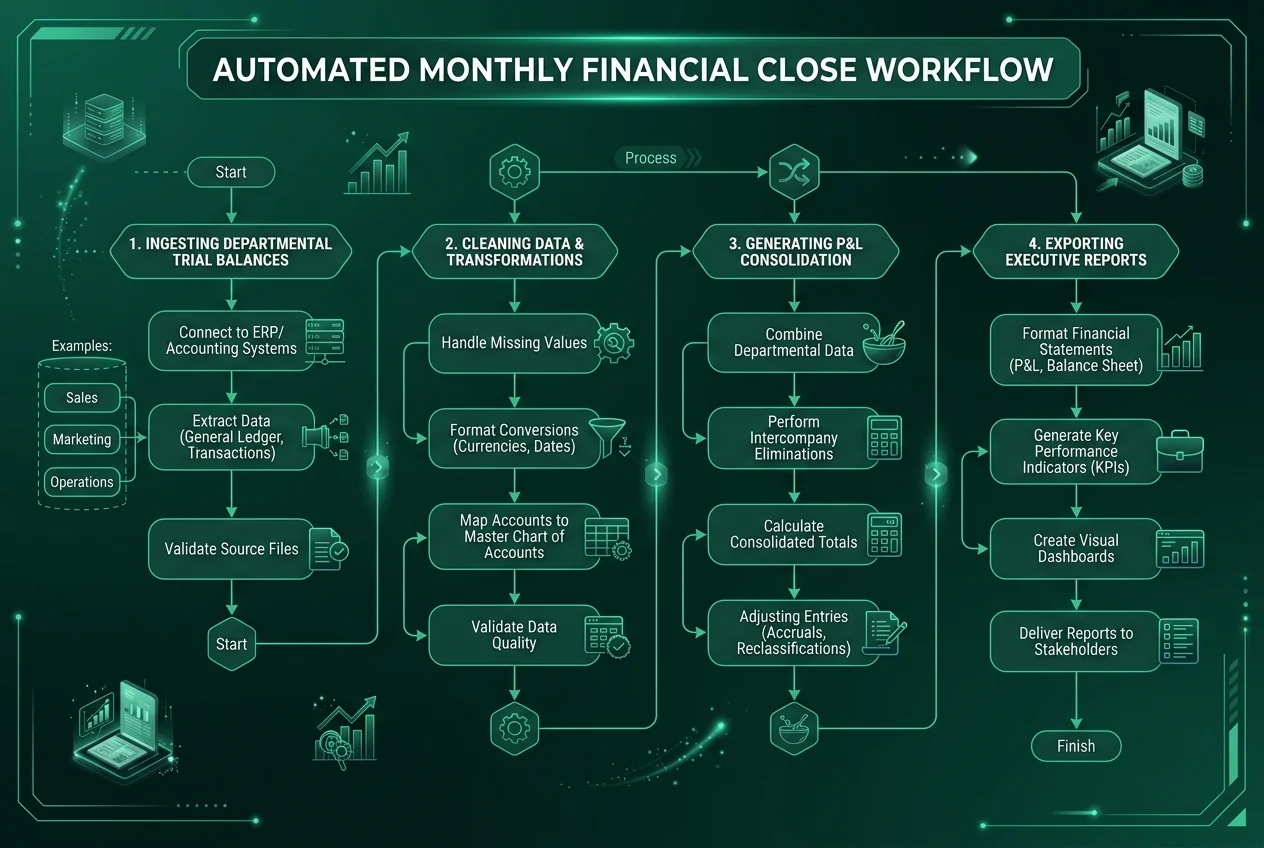
Core Mechanics: Automating Multi-Sheet Financial Consolidation
Let us construct a real-world enterprise VBA macro that iterates through every regional department worksheet in an active workbook, identifies dynamic data boundaries, and aggregates monthly operating expenses into a master summary tab.
Sub ConsolidateRegionalOpEx()
    Dim wsMaster As Worksheet
    Dim ws As Worksheet
    Dim lastRow As Long
    Dim nextMasterRow As Long
    Dim totalRegions As Integer

    ' Optimize performance before executing intensive operations
    Application.ScreenUpdating = False
    Application.Calculation = xlCalculationManual
    Application.EnableEvents = False

    On Error GoTo ErrorHandler

    ' Set reference to Master Consolidation worksheet
    Set wsMaster = ThisWorkbook.Sheets("Consolidated_P&L")

    ' Clear prior consolidated data, preserving headers in row 1
    nextMasterRow = wsMaster.Cells(wsMaster.Rows.Count, "A").End(xlUp).Row + 1
    If nextMasterRow > 2 Then
        wsMaster.Range("A2:F" & nextMasterRow).ClearContents
    End If

    nextMasterRow = 2
    totalRegions = 0

    ' Loop through every regional worksheet
    For Each ws In ThisWorkbook.Worksheets
        If ws.Name <> wsMaster.Name And ws.Name <> "Control_Panel" Then
            ' Identify dynamic last row of data in regional sheet
            lastRow = ws.Cells(ws.Rows.Count, "A").End(xlUp).Row

            If lastRow >= 2 Then
                ' Copy department OpEx rows to Master tab
                ws.Range("A2:F" & lastRow).Copy
                wsMaster.Range("A" & nextMasterRow).PasteSpecial xlPasteValues

                nextMasterRow = wsMaster.Cells(wsMaster.Rows.Count, "A").End(xlUp).Row + 1
                totalRegions = totalRegions + 1
            End If
        End If
    Next ws

    ' Restore application state
    Application.CutCopyMode = False
    Application.ScreenUpdating = True
    Application.Calculation = xlCalculationAutomatic
    Application.EnableEvents = True

    MsgBox "Successfully consolidated " & totalRegions & " regional divisions.", vbInformation, "Consolidation Complete"
    Exit Sub

ErrorHandler:
    Application.ScreenUpdating = True
    Application.Calculation = xlCalculationAutomatic
    Application.EnableEvents = True
    MsgBox "Consolidation failed on sheet '" & ws.Name & "': " & Err.Description, vbCritical, "Error " & Err.Number
End Sub
Enterprise Performance Optimization: Eliminating VBA Execution Lag
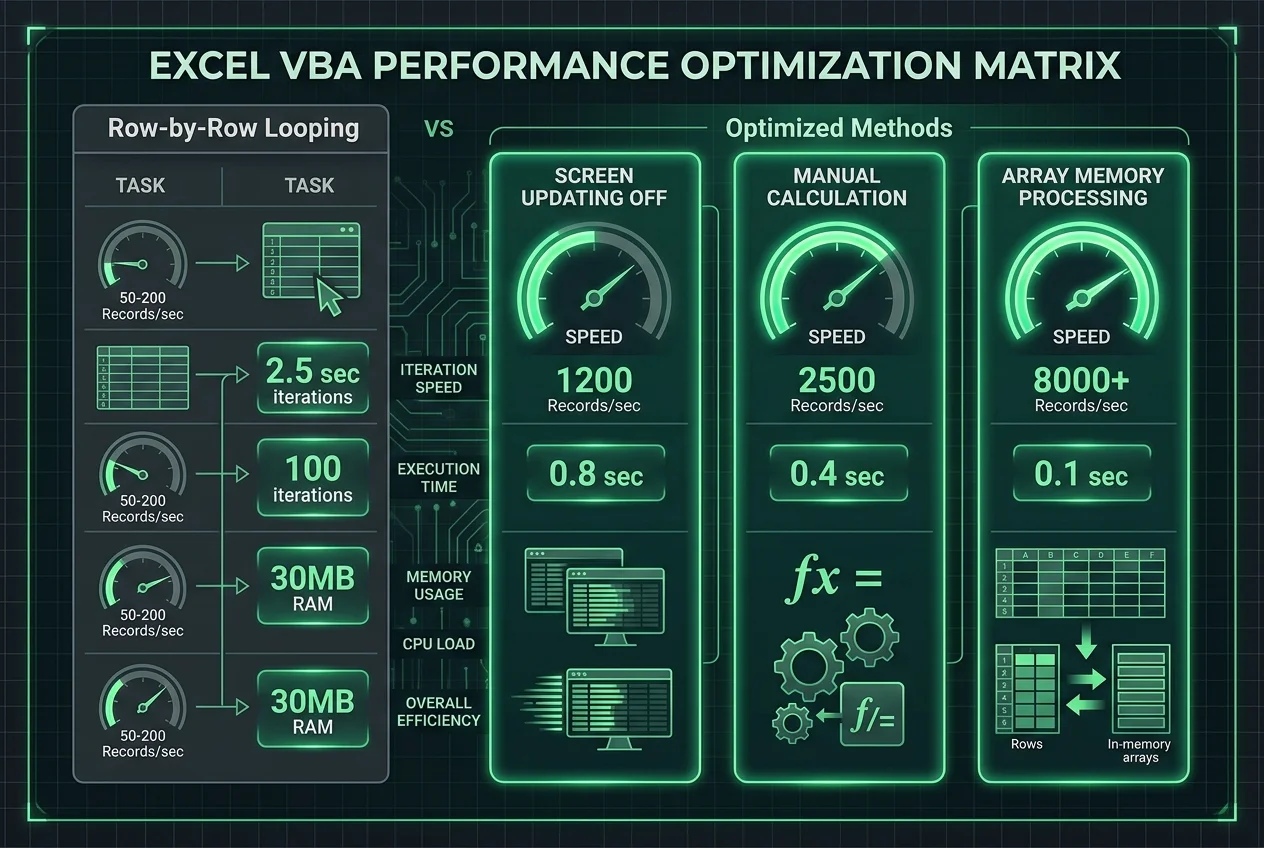
When processing hundreds of thousands of ledger entries, poorly written VBA scripts can lock up Excel for minutes. Understanding how the Excel calculation tree and COM interface interact allows you to optimize macro runtimes from minutes down to milliseconds.
1. Application State Toggles
By default, Excel re-renders every pixel on screen and recalculates every volatile formula whenever a cell value changes. Disabling these three properties at the start of your procedure provides an immediate 10x to 25x speed boost:
Application.ScreenUpdating = False: Suspends UI screen redraws until execution finishes.Application.Calculation = xlCalculationManual: Freezes automatic formula recalculations until processing completes.Application.EnableEvents = False: Prevents worksheet trigger events (likeWorksheet_Change) from firing recursively.
2. In-Memory Array Processing
The single greatest performance bottleneck in VBA is reading and writing to individual worksheet cells across the COM boundary. A loop that inspects 50,000 cells individually takes over 45 seconds. By reading the entire range into an in-memory Variant array, processing logic in RAM, and writing the completed array back in a single operation, execution drops to under 0.2 seconds:
Dim dataArray As Variant
Dim i As Long

' Read 50,000 rows into RAM in a single operation
dataArray = ws.Range("A2:D50000").Value

' Iterate and perform calculations entirely in-memory
For i = 1 To UBound(dataArray, 1)
    If dataArray(i, 4) > 100000 Then
        dataArray(i, 4) = dataArray(i, 4) * 0.95 ' Apply volume rebate
    End If
Next i

' Write results back to worksheet in a single instantaneous call
ws.Range("A2:D50000").Value = dataArray
Defensive Error Handling and Governance in Financial Modeling
A macro that crashes halfway through a financial close leaves workbooks in a compromised state with calculations disabled and screen updating frozen. Production finance macros must implement robust error handling protocols.
Structuring Defensive Handlers
Always route potential exceptions using On Error GoTo ErrorHandler. Your handler must explicitly restore application calculation modes, log the offending row or worksheet name, and alert the user with human-readable diagnostic context before exiting cleanly.
Protecting Intellectual Property & Version Control
In highly regulated financial institutions subject to SOX compliance, macro-enabled workbooks (.xlsm or .xlsb) must adhere to rigorous governance:
- VBA Project Password Protection: Lock VBA project properties to prevent unauthorized formula or code tampering by casual users.
- Code Separation via Add-Ins: Distribute proprietary modeling logic as an Excel Add-In (
.xlam) rather than embedding raw VBA code directly into distributed client templates. - Git Version Control for VBA: Use open-source utilities like Rubberduck or VBA-Git to export modules as plain text (
.bas,.cls) for peer code review and branch tracking.
Frequently Asked Questions (FAQ)
Is VBA still relevant in corporate finance, or should I just learn Python?
VBA remains essential because it runs natively inside Excel on locked-down corporate laptops without requiring IT security approval or Python environment installations. Python is superior for advanced machine learning, but VBA is the undisputed standard for automating existing Excel workbooks and legacy financial models.
What is the fastest way to learn Excel VBA for financial modeling?
Start by recording simple formatting tasks, then inspect the generated code in the VBE editor. Replace hardcoded cell references with dynamic .End(xlUp) boundaries, practice writing For Each loops across worksheets, and master in-memory array manipulation.
Can Excel macros run automatically on a scheduled basis?
Yes. You can trigger macros automatically using the Workbook_Open event paired with Windows Task Scheduler, or schedule periodic procedures using Excel’s built-in Application.OnTime method.
How do I speed up a slow Excel macro that freezes my computer?
The two biggest speed fixes are toggling Application.ScreenUpdating = False and reading ranges into Variant arrays in memory rather than reading/writing cell-by-cell inside a loop.